
We make sharing your aircard connection simpler than ever! Whether your goal is creating in-car internet, access at tradeshows, or just a home network when you live off the beaten path, our LTE and 5G routers can help you accomplish it. Coupled with your cellular modem (aircard) or cellphone, you can create your own hotspot wherever you may be. Whether you are using AT&T, T-Mobile, Verizon etc. we have a solution for you. Also check out the 'Gateway' devices, just insert a data provisioned SIM and surf. We handle products from Cradlepoint, Nexaira, Option, and Top Global.
WiFi Routers
Displaying 1 to 9 (of 9 Products)
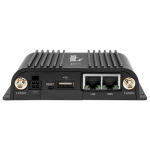
Cradlepoint IBR900 with 600MB modem w 1 year NetCloud and wifi
NetCloud Solution Packages with the ruggedized IBR900/600 router are designed to enable secure enterprise-grade networking for mobile networks in...
$1,025.00
... more info
Cradlepoint S700 Semi-Ruggedized Wi-Fi router w/3year NetCloud & Accessories
Semi-ruggedized router with GNSS/GPS and zero trust security for mission-critical IoTIncludes AC adaptor, 2 WIfi antennas and 2 LTE antennas. ...
$580.00
... more infoMax: 500

Cradlepoint S700 Semi-Ruggedized Wi-Fi router w/3year NetCloud NO Accessories
Semi-ruggedized router with GNSS/GPS and zero trust security for mission-critical IoTIncludes GPIO cable only NO antennas. Hardware specs...
$540.00
... more infoMax: 500
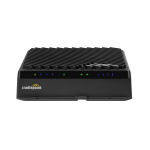
Cradlepoint R1900 5G and LTE Mobile device with NetCloud
High-performance 5G mobile router for the ultimate in-vehicle network connectivity.The purpose-built router Cradlepoint endpoints provide...
$1,999.00
... more info
Cradlepoint S400 Semi-Ruggedized Router for IOT (by Ericsson) w/3yr NetCloud
The Ericsson Cradlepoint S400 is a cloud managed, semi-ruggedized secure appliance and router for IoT networks. Offering connectivity through LTE...
$435.00
... more info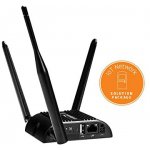
Cradlepoint IBR200 router with3-yr NetCloud IoT Essentials Plan Verizon
Semi-ruggedized, compact 4G LTE router for IoT applications, ideal for MTM Verizon modelHardware Specs: CategoryIoT Cloud ManagementYes...
$340.00
... more infoCradlepoint IBR200 router with3-yr NetCloud IoT Essentials Plan AT&T
Semi-ruggedized, compact 4G LTE router for IoT applications, ideal for MTMHardware Specs: CategoryIoT Cloud ManagementYes Wireless...
$340.00
... more infoCradlepoint IBR900 with 1200MB modem w/5 year NetCloud and wifi
NetCloud Solution Packages with the ruggedized IBR900/120B router are designed to enable secure enterprise-grade networking for mobile networks in...
$1,099.00
... more info
E3000 router with WiFi (5G modem) 1-yr NetCloud Essentials
The purpose-built router embedded or optimized for 5G Cradlepoint endpoints provide industry-leading, Gigabit-Class LTE connectivity as well as...
$2,399.00
... more infoDisplaying 1 to 9 (of 9 Products)
David L Says: “Great service, works great with usb727 verzion.”
Dimon Says: “SHIPPED QUICK AS ADVERTISED WORKED GREAT THANKS!!!!!!”
TT Says: “Great service!! I ordered late on Tuesday afternoon, item arrived Thursday morning with latest firmware updated. I will buy from WirelessNWifi again. Thanks for all the help.”
Dave K Says: “Great Price, Great Service, Fast Shipping, Can't beat that!”
Jim B Says: “UNBELIEVABLE!! Never Gotten ANYTHING So FAST!!!! Thanks!”
Vince Says: “I just wanted to thank you again for making this outstanding product available, and for the great communication. I can not get DSL or cable, so I am happy to get high speed internet with a Sprint wireless card. With this Cradlepoint router, I was able to share the high speed internet with my two sons in their rooms, my wife's laptop, and a desktop in my office. I plan on taking it with me when I go on boat trips and giving my friends high speed internet access in their boats when we tie up together in the San Juan Islands. The price was very reasonable and the communication that I had about installing the software was outstanding. The bottom line is that I could not be happier with the product, communication, and fast shipping. If I could add this email to my feedback on EBay, I would do it. I would highly recommend your product to anyone who was thinking of buying one, so feel free to have people contact me if you want.”