
We make sharing your aircard connection simpler than ever! Whether your goal is creating in-car internet, access at tradeshows, or just a home network when you live off the beaten path, our LTE and 5G routers can help you accomplish it. Coupled with your cellular modem (aircard) or cellphone, you can create your own hotspot wherever you may be. Whether you are using AT&T, T-Mobile, Verizon etc. we have a solution for you. Also check out the 'Gateway' devices, just insert a data provisioned SIM and surf. We handle products from Cradlepoint, Nexaira, Option, and Top Global.
WiFi Routers
Displaying 1 to 9 (of 9 Products)
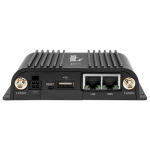
Cradlepoint IBR900 with 600MB modem w 1 year NetCloud and wifi
NetCloud Solution Packages with the ruggedized IBR900/600 router are designed to enable secure enterprise-grade networking for mobile networks in...
$1,025.00
... more info
Cradlepoint S700 Semi-Ruggedized Wi-Fi router w/3year NetCloud & Accessories
Semi-ruggedized router with GNSS/GPS and zero trust security for mission-critical IoTIncludes AC adaptor, 2 WIfi antennas and 2 LTE antennas. ...
$580.00
... more infoMax: 500

Cradlepoint S700 Semi-Ruggedized Wi-Fi router w/3year NetCloud NO Accessories
Semi-ruggedized router with GNSS/GPS and zero trust security for mission-critical IoTIncludes GPIO cable only NO antennas. Hardware specs...
$540.00
... more infoMax: 500
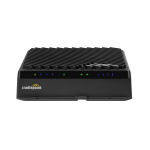
Cradlepoint R1900 5G and LTE Mobile device with NetCloud
High-performance 5G mobile router for the ultimate in-vehicle network connectivity.The purpose-built router Cradlepoint endpoints provide...
$1,999.00
... more info
Cradlepoint S400 Semi-Ruggedized Router for IOT (by Ericsson) w/3yr NetCloud
The Ericsson Cradlepoint S400 is a cloud managed, semi-ruggedized secure appliance and router for IoT networks. Offering connectivity through LTE...
$435.00
... more info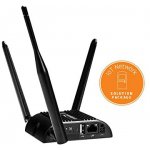
Cradlepoint IBR200 router with3-yr NetCloud IoT Essentials Plan Verizon
Semi-ruggedized, compact 4G LTE router for IoT applications, ideal for MTM Verizon modelHardware Specs: CategoryIoT Cloud ManagementYes...
$340.00
... more infoCradlepoint IBR200 router with3-yr NetCloud IoT Essentials Plan AT&T
Semi-ruggedized, compact 4G LTE router for IoT applications, ideal for MTMHardware Specs: CategoryIoT Cloud ManagementYes Wireless...
$340.00
... more infoCradlepoint IBR900 with 1200MB modem w/5 year NetCloud and wifi
NetCloud Solution Packages with the ruggedized IBR900/120B router are designed to enable secure enterprise-grade networking for mobile networks in...
$1,099.00
... more info
E3000 router with WiFi (5G modem) 1-yr NetCloud Essentials
The purpose-built router embedded or optimized for 5G Cradlepoint endpoints provide industry-leading, Gigabit-Class LTE connectivity as well as...
$2,399.00
... more infoDisplaying 1 to 9 (of 9 Products)
Mysti Says: “Due to a mix-up by Amazon, this was a duplicate order, so the item was returned. Excellent customer service at WirelessnWiFi. Fast refund and excellent communication.”
Alice Says: “Great communication and quick order processing and shipping! couldn't have been better!”
Jim G Says: “Thanks for the OUTSTANDING customer support. This is the third time I have received a rapid response to an inquiry. It is refreshing to deal with a company which is really customer oriented. Keep up the good work.”
Kay Says: “I had questions about the different models and they answered them precisely. I highly recommend the company.”
Brian F. Says: “Excellent service, product was shipped, received and installed in my office in two days. Product is more than expected, very simple install. The speed and coverage is outstanding. I was skeptical of buying a router that wasn't D-link, netgear or linksys but the cradlepoint 1000 is phenomenal. EVDO on multiple computers at amazing speeds.”
SPY Says: “Extremely fast Shipping and Product Funtioned Perfectly!!!! Well Packed. Thanks”